
Animation Engine
Image Scroll Choreography
Pin flat foreground IMAGES and choreograph each one to the page scroll — it appears (from below / a side / a fade), HOLDS on its corner while the visitor scrolls a whole “chapter”, then exits, all at the scroll % you set. Several images share one scroll timeline (a “kage”-style foreground group), each anchored to a corner, pinned in a fixed layer your sections scroll under, with an opt-in authoring guide. Self-contained runtime, reduced-motion safe.
Foreground on scroll
Images that appear, hold, and exit.
This is the flat-image sibling of the Model Viewer’s Scroll Choreography. Add the Scroll Choreography element (Media Elements), drop in a few transparent images, anchor each to a corner, and set when it appears, how long it holds, and when it leaves — keyed to the page scroll. They pin in a fixed layer, so your sections scroll underneath. The authoring guide is switched on here — the dashed markers and the readout in the corner show each image’s appear / hold / exit points and the live scroll %; you’d turn it off before publishing. Keep scrolling ↓
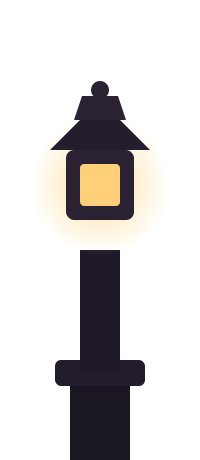
① The left lantern rises in
At ~12% the first image slides up from below the fold and fades onto its bottom-left anchor — then it just holds there while you keep scrolling.
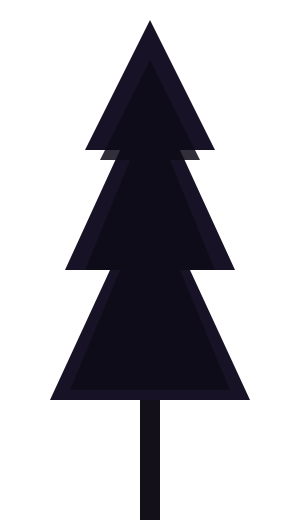
② The tree slides in from the right
At ~26% a second image enters from the right edge (flipped, gently tilted). Every image is on the same scroll ruler, so they arrive in the order you set.
③ All three hold while you read
Through the middle of the timeline the whole foreground is pinned in place — it stays with you across this chapter, exactly like a “kage” foreground, while the copy scrolls past.
④ Then each exits the way it came
Past ~80% they leave — the lantern drops back down, the tree slides off right, the centre one fades — each gone by the scroll % you chose. Scroll back up and it all replays in reverse.
One-click recipes
Or skip the tuning — pick a recipe.
Every scene above was hand-timed. You don’t have to: the Recipe picker on the Images tab poses and staggers your images for you. Just add the pictures and choose a composition — Parallax Rise, Corner Peek-a-boo, Zoom Focus, Diagonal Sweep or Alternating Sides — and it spreads their appear / hold / exit across the whole scroll automatically, for any number of images. This scene is Corner Peek-a-boo with nothing hand-set. Keep scrolling ↓
Each image peeks in from its own corner
The recipe gave image 1 the bottom-left, image 2 the top-right, image 3 the top-left, image 4 the bottom-right — each sliding in from that edge, holding, then slipping back out, timed one after another. Add a fifth image and it just slots into the cadence.
Logged in? Open the ✎ editor
Because the authoring guide is on, signed-in authors get an Edit (✎) button on the guide HUD: drag the scrub slider to freeze the scene at any %, nudge a layer’s X / Y / scale / turn / fade with the ± steppers to see the pose change live, then hit Copy keys to paste the tweaked keyframes back into the element. Switch the Recipe to Custom to keep any hand-tuning.
How to set it up
Add it in under a minute
- Add the Scroll Choreography element (Media Elements) where the sequence should start, then put your “chapter” sections right after it (they scroll underneath).
- Fast path: on the Images tab pick a Recipe (Parallax Rise, Corner Peek-a-boo, Zoom Focus, Diagonal Sweep, Alternating Sides), add your images, and it poses + staggers them across the scroll for you. Choose Custom to hand-author instead.
- On the Images tab, add each transparent image and pick an Anchor (bottom-left, bottom-right, centre…), a width and an edge inset.
- For each image set Appear by + Appear at %, Hold until %, and Exit by + Gone by % — plus an optional tilt and hold size. That’s the appear → hold → exit, keyed to scroll.
- On the Scene tab set Scroll length (screens) to how many sections the group spans, the foreground z-index, and smoothing. Turn on the guide to dial in the exact scroll %, then turn it off before publishing.